
Quota Management
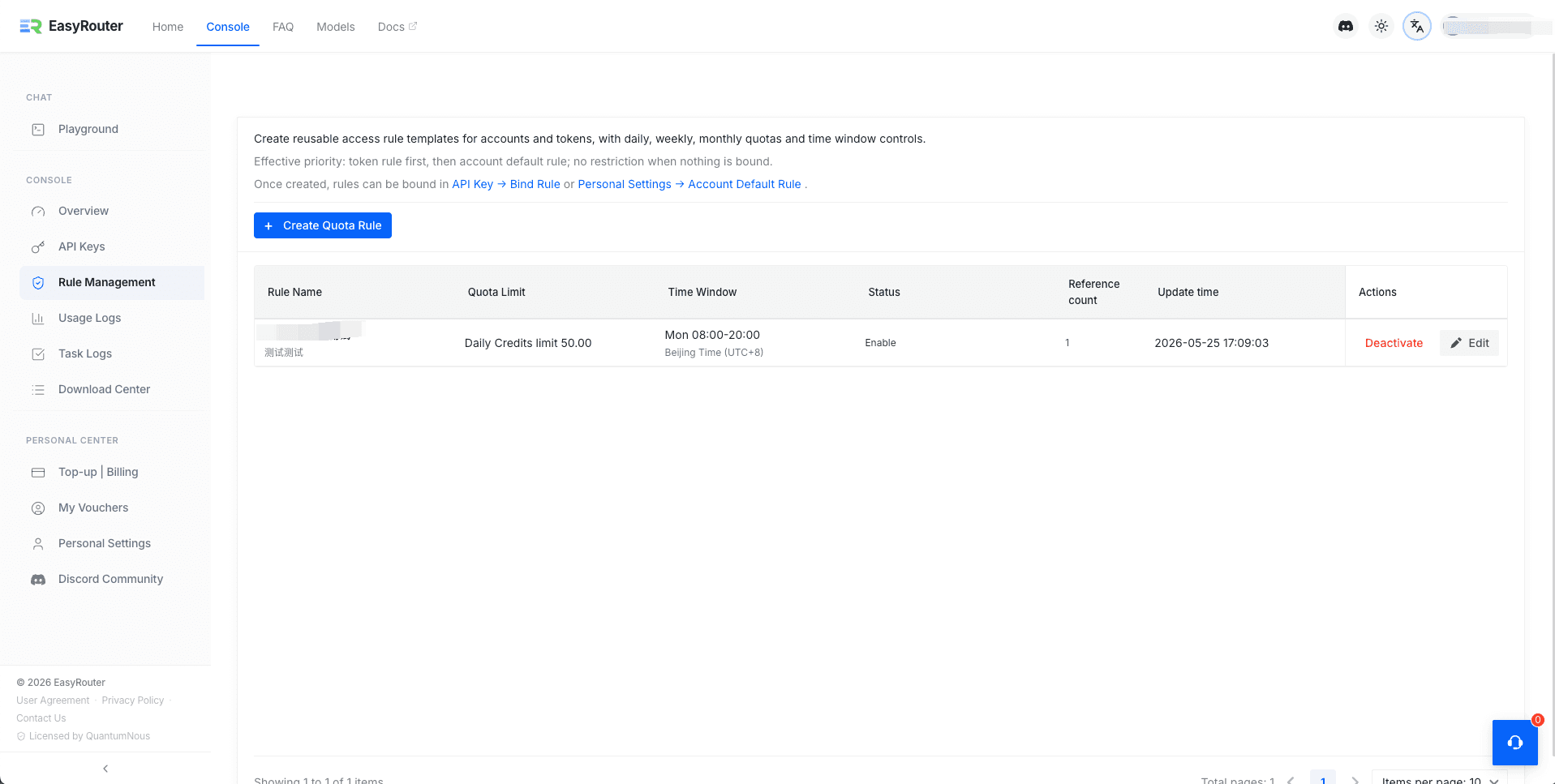
Control how much your API Keys and account can spend by creating reusable quota rule templates. Each rule defines a spending limit and optional time window — apply it to individual keys or as your account default.
Why Use Quota Rules
- Prevent overspend — Cap daily, weekly, or monthly credit usage per key. Once the limit is hit, requests are rejected for the rest of the period.
- Separate environments — Assign a low daily limit to your dev key for safety, while keeping the production key unrestricted.
- Restrict usage hours — Only allow API calls during working hours (e.g. Mon–Fri, 08:00–20:00) to avoid overnight runaway scripts.
How Rules Work
Rules follow a clear priority chain:
API Key rule (if set) → Account default rule (if set) → No restriction- An API Key bound to a rule uses that rule directly.
- Keys without a dedicated rule inherit the account's default rule.
- If neither is set, the key has no spending or time restrictions.
Creating a Rule
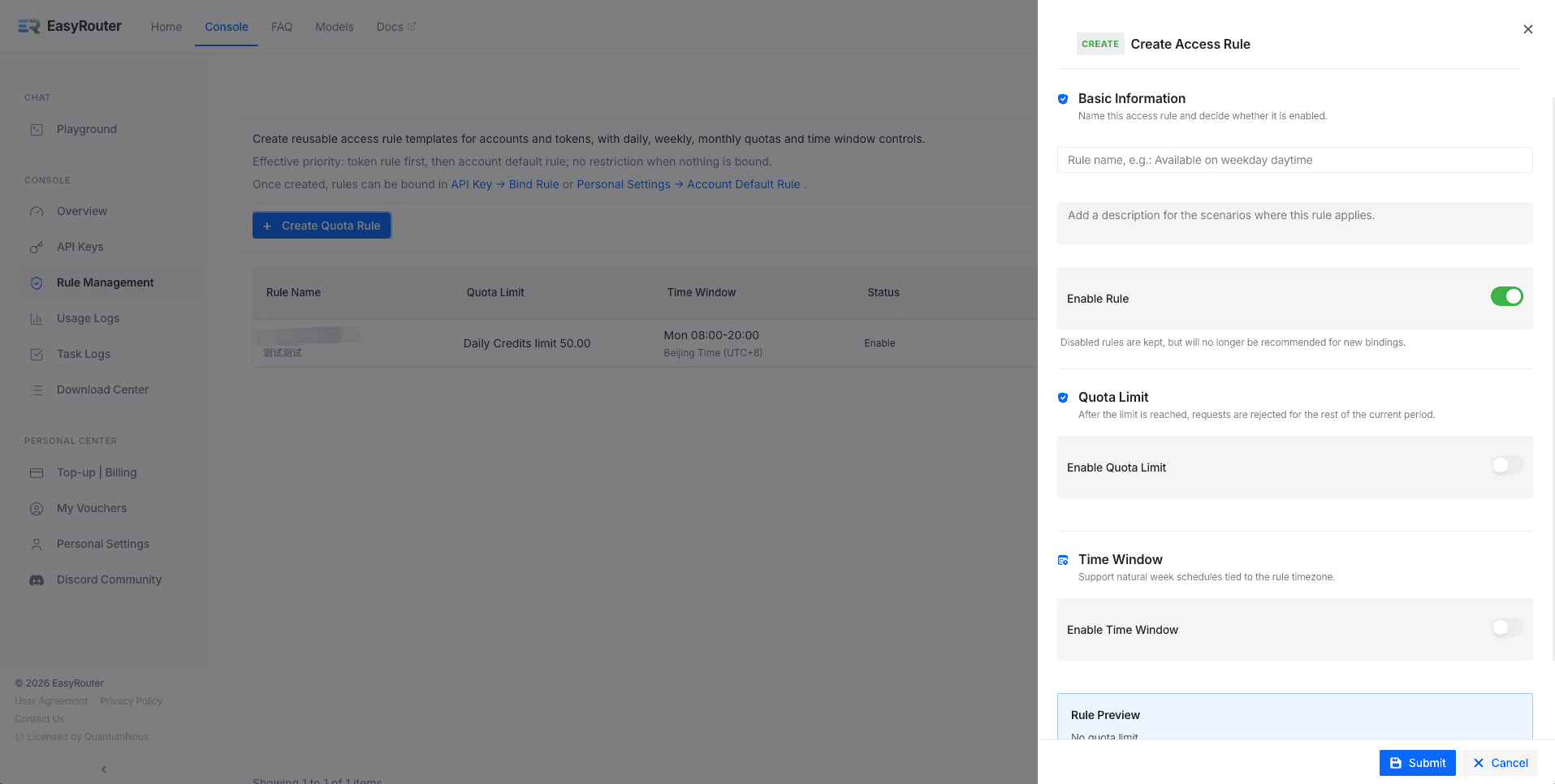
Click + Create Quota Rule to open the edit panel.
Basic Information
- Rule Name — Give it a recognizable name, e.g. "Development key limit".
- Description — Optional note explaining when this rule should apply.
- Enable Rule — Toggle on/off. Disabled rules are kept for reference but won't appear as binding suggestions.
Quota Limit
- Enable Quota Limit — Turn on to enforce a spending cap. Once the credit limit is reached, requests are rejected for the remainder of the current period.
- Quota Period — Choose Daily, Weekly, or Monthly. The counter resets at the start of each period.
- Quota Limit — Maximum credits allowed per period. The value shown alongside the input field is always in credits.
Time Window
- Enable Time Window — Turn on to restrict when this rule is active. Outside the allowed window, requests are blocked.
- Timezone — Select the timezone this rule applies to (e.g.
UTC+8). - Allowed Weekdays — Check the days when the rule allows API calls. For a typical work schedule, select Monday through Friday.
- Allowed Hours — Set a time range in
HH:MM-HH:MMformat (e.g.08:00-20:00).
Rule Preview
The preview panel at the bottom of the editor shows exactly what your rule will look like in plain text — review it before submitting.
Where to Bind Rules
Bind to an API Key
Go to API Keys, find the target key, and click Bind Rule in its row. Select a rule from the dropdown, or choose Inherit from account default to use the account-level setting.
Set Account Default
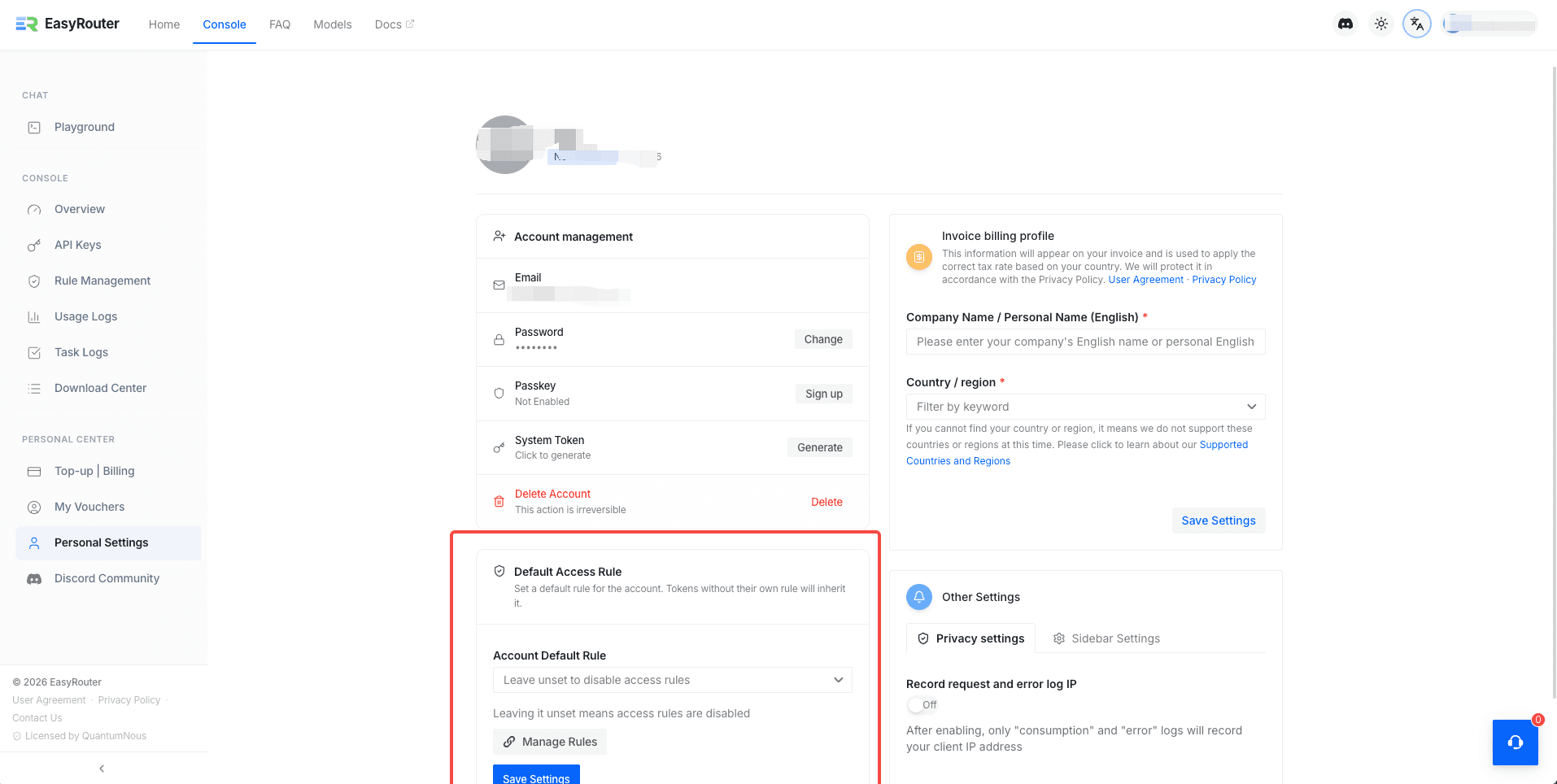
Go to Personal Settings, scroll to Default Access Rule, and select a rule as your account-wide default. All keys without their own rule will inherit it.
Managing Existing Rules
The rule list shows all your created templates, each with:
| Column | Description |
|---|---|
| Rule Name | The name you gave the rule |
| Quota Limit | Period and credit cap (e.g. "Daily Credits limit 50.00") |
| Time Window | Allowed days and hours, with timezone |
| Status | Enable (green) or Deactivate (gray) |
| Reference count | How many keys are currently using this rule |
| Actions | Edit to modify, Deactivate/Activate to toggle |
A rule with active references can still be edited — changes take effect immediately on all bound keys.