
Quick Start
Get up and running with EasyRouter in 5 minutes — get your API Key, make your first AI call, and connect your tools.
EasyRouter is a unified AI model gateway, fully compatible with the OpenAI API format. With a single API Key and Base URL, you can access nearly 100 leading AI models — GPT, Claude, Gemini, DeepSeek, and more — without managing separate accounts or credentials for each provider.
Whether you call the API directly from code or use client tools like Claude Code or OpenClaw, the setup is always the same.
Part 1 — Get Up and Running in 5 Minutes
Step 1 — Get Your API Key
1.1 Log In to the EasyRouter Console
Open https://easyrouter.io and sign in with your Google, GitHub, or Discord account.
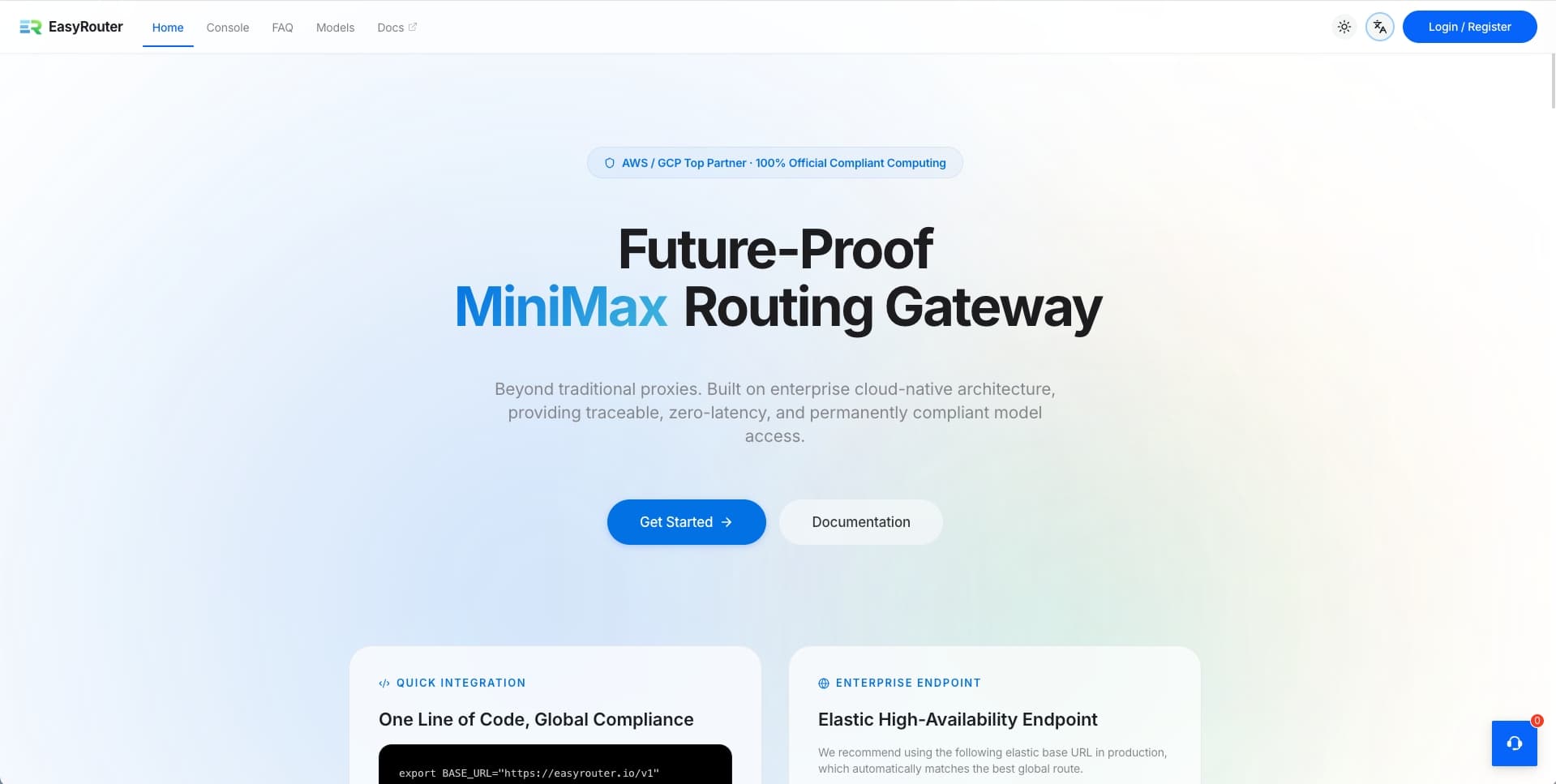
1.2 Go to API Key Manager and Create an API Key
Click API Key Manager in the left sidebar.
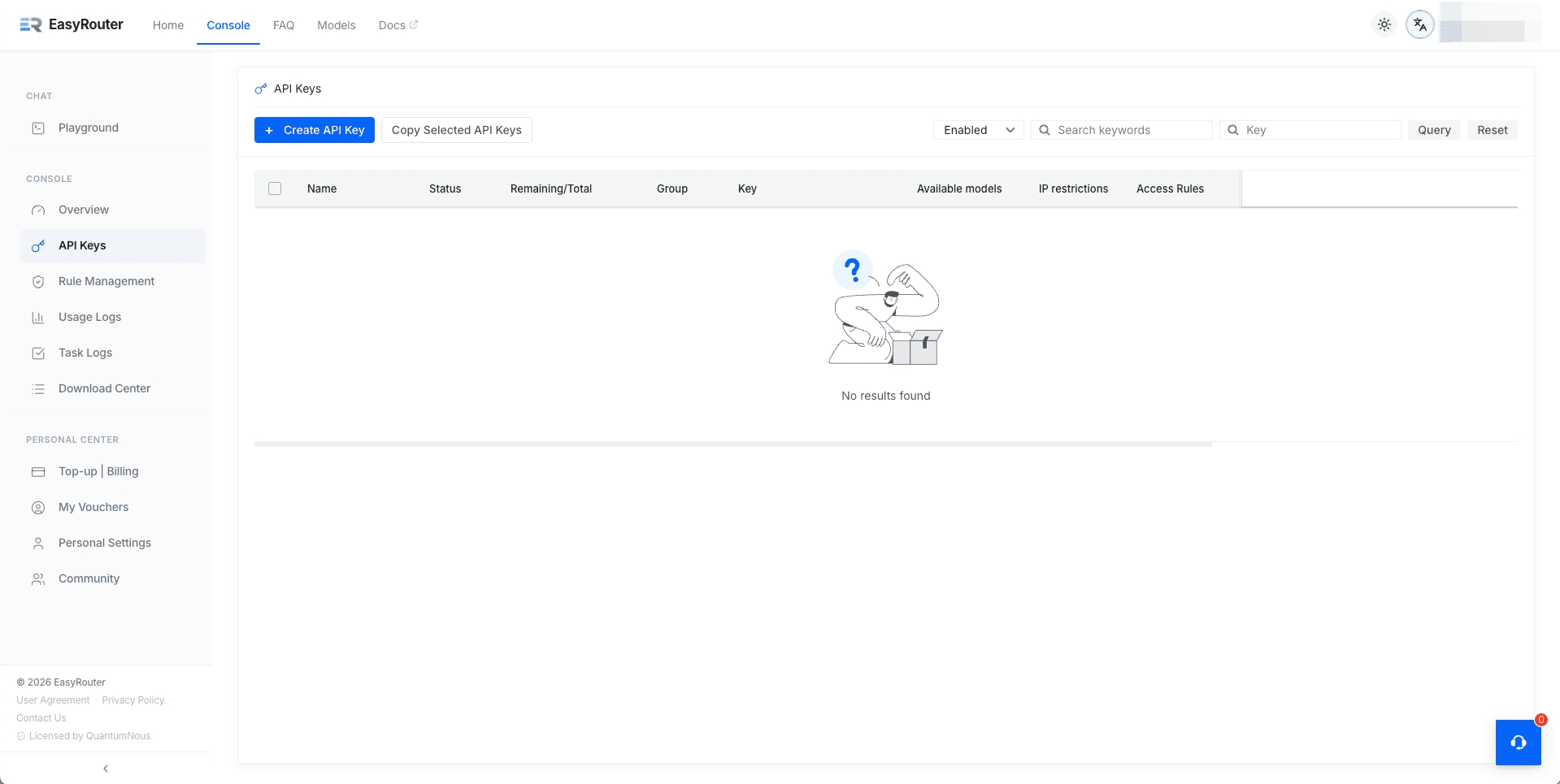
Click the Create API Key button. In the dialog, configure:
- Key Name: Give this key a descriptive name (e.g.
my-first-key) - Group: Optional — organize keys by project or purpose (not required)
- Quantity: Number of keys to create (default: 1)
- Quota Settings: Choose "Unlimited" or set a per-request limit
- Other Options: Configure expiry date, IP whitelist, or other restrictions as needed
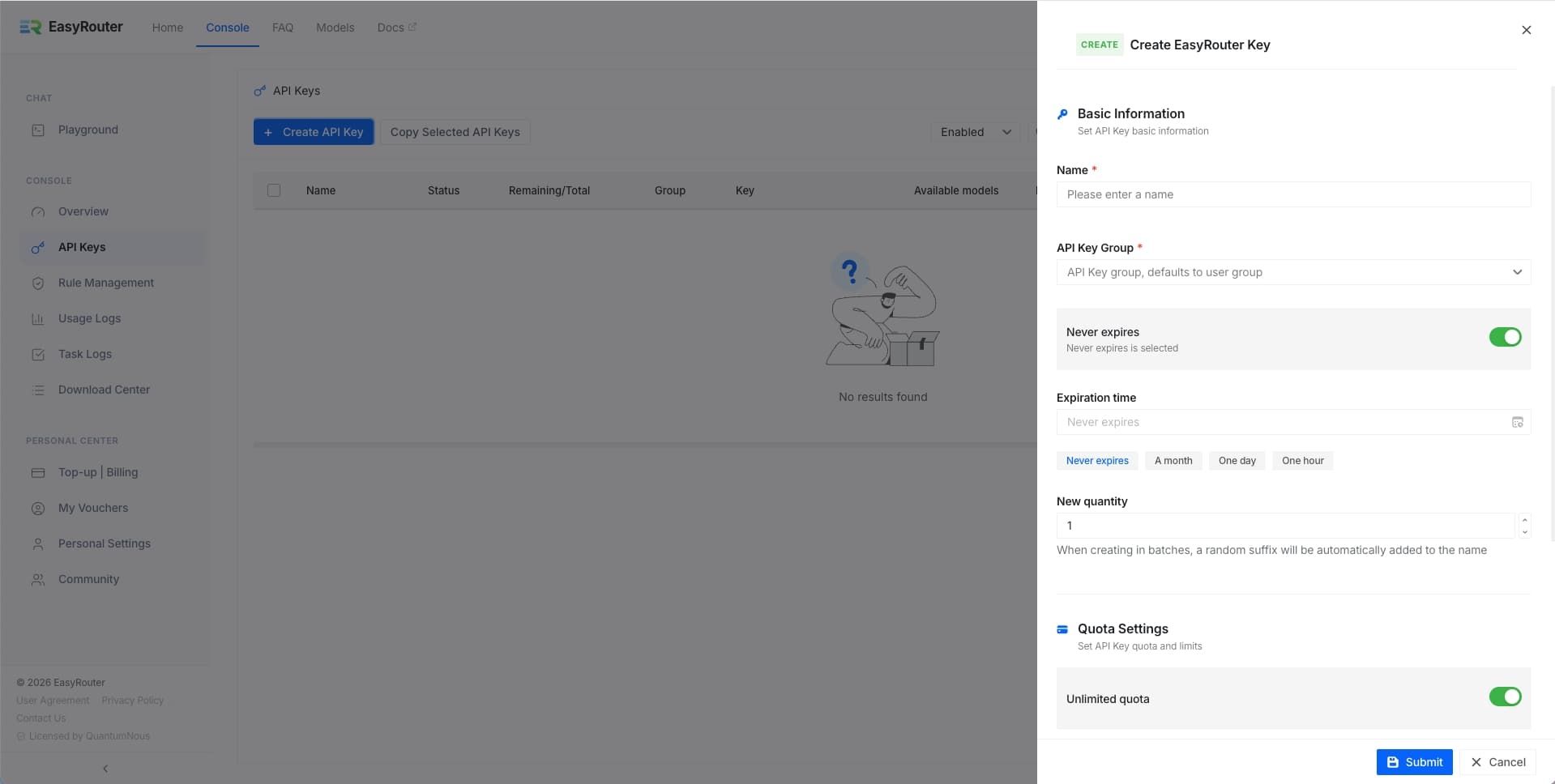
Click Submit and your API Key will be generated immediately.
1.3 Copy Your API Key
Once created, find your API Key in the list. Right-click on it to see your options:
- "Copy Key": Copy the API Key (starts with
sk-) - "Copy Link Info": One-click copy of the complete configuration including Base URL and API Key
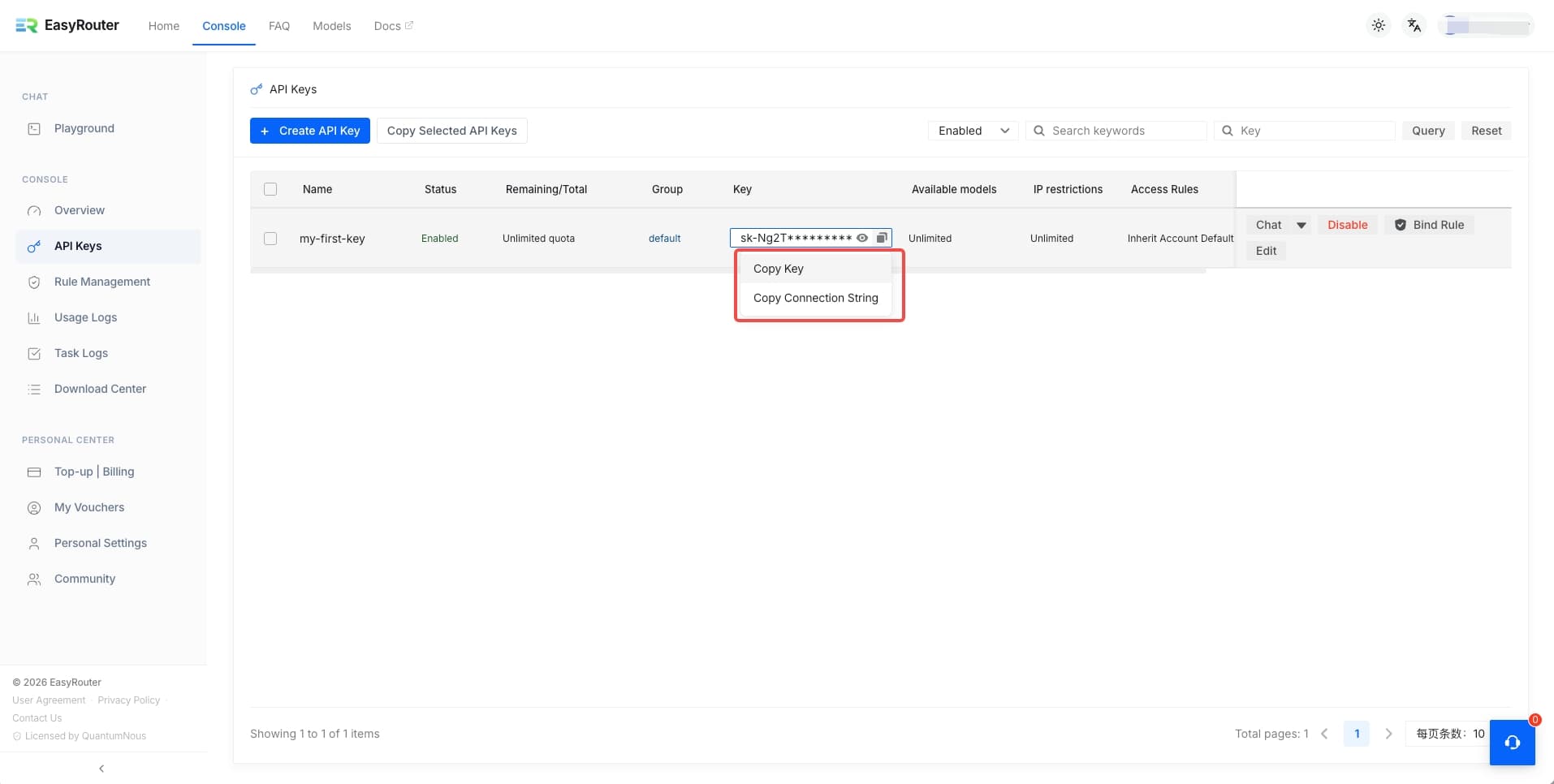
You'll now have:
- Base URL:
https://easyrouter.io— your API endpoint for all calls - API Key: starts with
sk-
Important
Your API Key is displayed in a popup right after creation. We recommend copying and saving it to a secure location immediately. You can click "Show Key" in the token list to view it again later.
Step 2 — Make Your First API Call
EasyRouter is fully compatible with the OpenAI API format. By modifying the configuration, you can use the standard OpenAI SDK, or any third-party clients and tools compatible with OpenAI, to seamlessly call all leading AI models aggregated by EasyRouter.
2.1 Browse Available Models
You can browse all available models on the Model Hub.
If you need to query the available models programmatically, you can call the models endpoint directly:
curl https://easyrouter.io/v1/models \
  -H "Authorization: Bearer sk-YOUR_API_KEY"
The id field in each returned object is the model name to use.
2.2 Make Your First Call
Pick a model and fill in the model parameter to initiate a call. Here's an example using gemini-2.5-flash:
Tip
Set the model parameter to the model name you want, e.g. gemini-2.5-flash.
Browse all models on the Model Hub or query GET /v1/models.
curl https://easyrouter.io/v1/chat/completions \
  -H "Content-Type: application/json" \
  -H "Authorization: Bearer sk-YOUR_API_KEY" \
  -d '{
    "model": "gemini-2.5-flash",
    "messages": [
      {"role": "user", "content": "Hello! Introduce yourself."}
    ]
  }'
from openai import OpenAI
client = OpenAI(
base_url="https://easyrouter.io/v1",
api_key="sk-YOUR_API_KEY"
)
response = client.chat.completions.create(
model="gemini-2.5-flash",
messages=[
{"role": "user", "content": "Hello! Introduce yourself."}
]
)
print(response.choices[0].message.content)Step 3 — Connect Your Tools
EasyRouter works with any OpenAI-compatible client or tool. You need three things:
| Parameter | Value |
|---|---|
| API Address (Base URL) | https://easyrouter.io |
| API Key | The token you created in the console |
| Model Name | From /v1/models, or the console model list |
Claude Code / Codex CLI
Command-line code assistants.
When using Claude Code or Codex CLI in your terminal, set the following environment variables:
# Claude Code
export ANTHROPIC_BASE_URL="https://easyrouter.io"
export ANTHROPIC_API_KEY="sk-YOUR_API_KEY"

# Codex CLI
export OPENAI_BASE_URL="https://easyrouter.io/v1"
export OPENAI_API_KEY="sk-YOUR_API_KEY"
Full guide: Claude Code · Codex CLI
OpenClaw
Self-hosted AI assistant platform, recommended for advanced users.
OpenClaw is a self-hosted AI assistant platform with multi-channel support (Telegram, Discord, Feishu, and more). Add EasyRouter as a model provider in ~/.openclaw/openclaw.json:
{
  "models": {
    "mode": "merge",
    "providers": {
      "easyrouter": {
        "baseUrl": "https://easyrouter.io/v1",
        "apiKey": "sk-YOUR_API_KEY",
        "api": "openai-completions",
        "models": [
          { "id": "gemini-2.5-flash", "name": "Gemini 2.5 Flash" },
          { "id": "claude-sonnet-4-6", "name": "Claude Sonnet 4.6" }
        ]
      }
    }
  },
  "agents": {
    "defaults": {
      "model": {
        "primary": "easyrouter/gemini-2.5-flash"
      }
    }
  }
}
Full guide: OpenClaw
Cherry Studio
Desktop AI client, recommended for beginners.
Cherry Studio is a feature-rich desktop AI chat client that supports multi-model conversations.
- Download and install Cherry Studio: https://cherry-ai.com/download
- Open Settings → Model Providers → Add Provider
- Set provider type to
OpenAI(or OpenAI-compatible) - API Address:
https://easyrouter.io - API Key: your EasyRouter token
- Add the model IDs you want to use (query
/v1/modelsfor the full list)
One-click Auto-fill
The EasyRouter console Token Manager supports one-click auto-fill for Cherry Studio. Click the button on the token list page and Cherry Studio will be configured automatically.
Full guide: Cherry Studio
Any Other OpenAI-Compatible Tool
For any tool that allows a custom API endpoint, just configure:
- API Address / Base URL →
https://easyrouter.io - API Key → your EasyRouter token
- Model Name → from
/v1/models
Browse all verified app integration guides: Connect Agent Tools
Part 2 — API Capabilities Overview
EasyRouter exposes the following AI model APIs, all in OpenAI-compatible format:
| API | Endpoint | Description |
|---|---|---|
| Chat Completions | POST /v1/chat/completions | Multi-turn conversations, streaming (stream: true), Tool Calling, structured outputs |
| Text Completions | POST /v1/completions | Classic single-turn text completion |
| Image Generation | POST /v1/images/generations | AI image generation |
| Video Generation | POST /v1/videos | AI video generation |
| Model List | GET /v1/models | Query all currently available models |
Full API reference: API Docs