Payment & Top Up
Understand recommended top-up plans, customize payment amounts, and manage billing history with self-service invoice downloads.
In the EasyRouter Console, you can purchase credits via the Top-up | Billing function to call all AI models.
Top Up
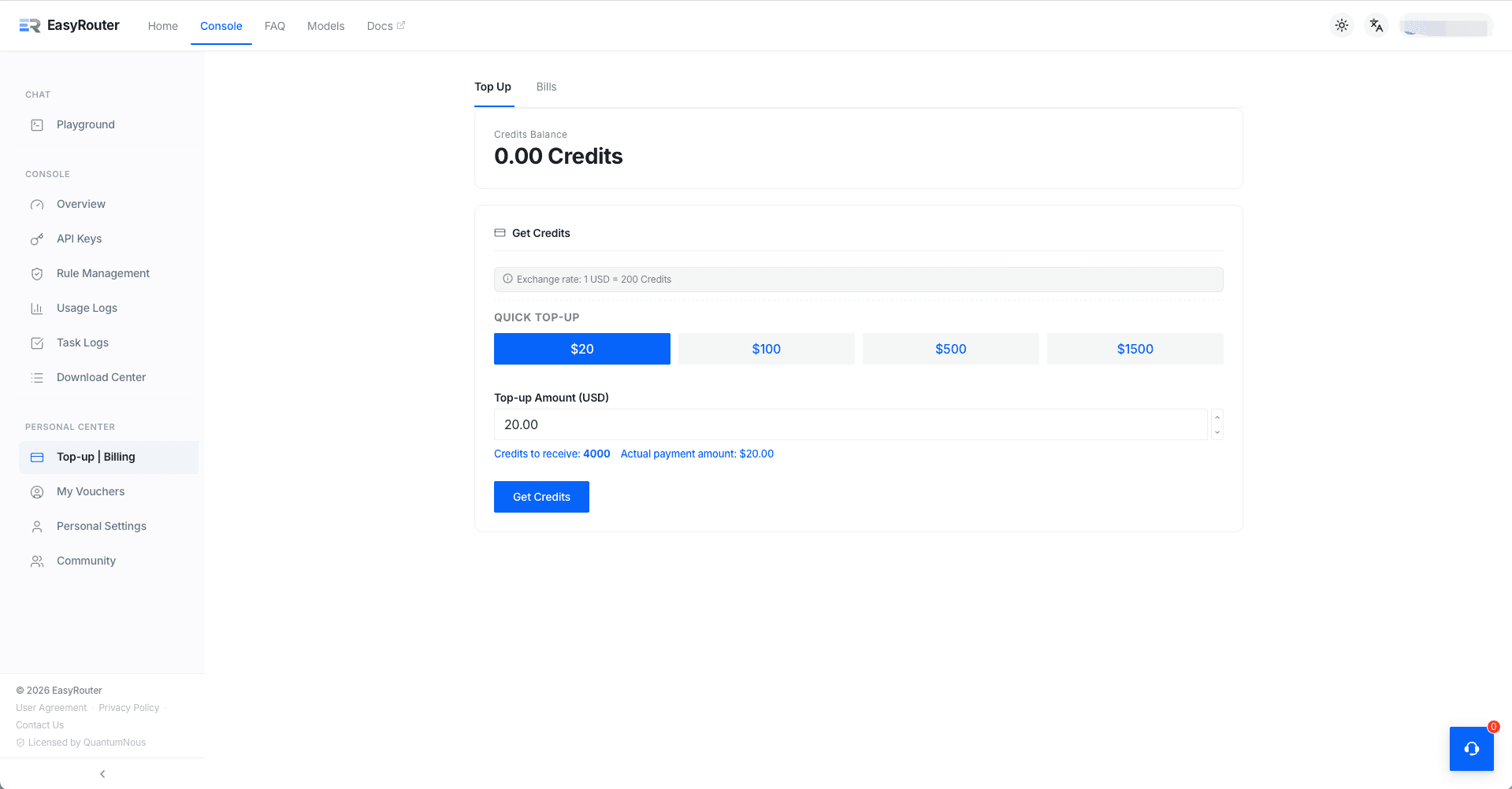
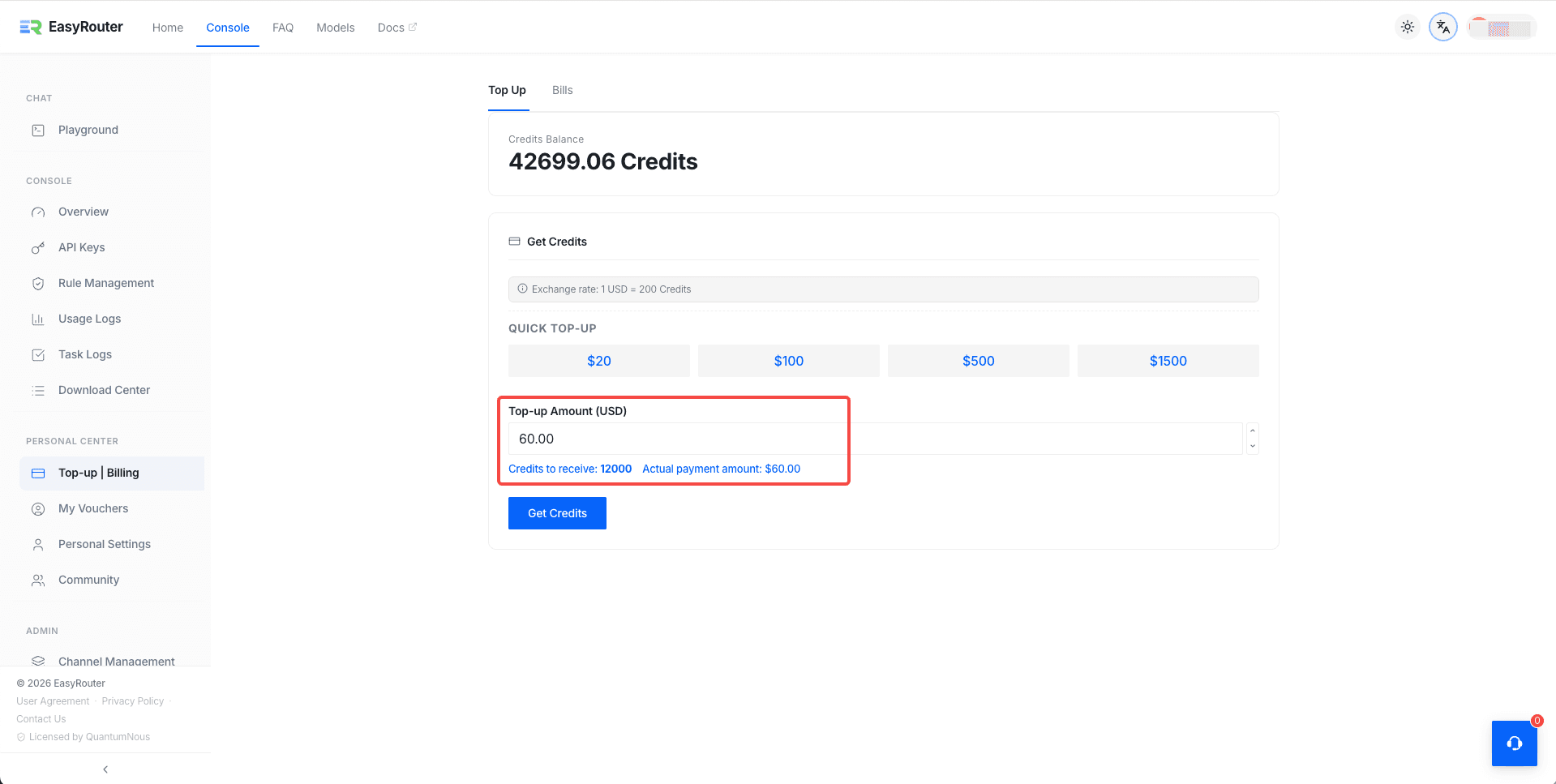
Enter the console's Top-up | Billing page to see your current credit balance and top-up options.
Recommended Plans
To accommodate different usage scales, EasyRouter's homepage features 4 recommended plans. These are not monthly subscriptions — credits are deducted based on actual usage (pay only for what you use):
- Study ($20): Ideal for personal learning, exploration, and light daily use.
- Standard ($100): Ideal for power users and small teams with complex daily workflows.
- Pro ($500): Most Popular — Enterprise-grade usage with a shared quota pool for teams.
- Max ($1,500): Organization-level AI infrastructure to guarantee large-scale, mission-critical workflows.
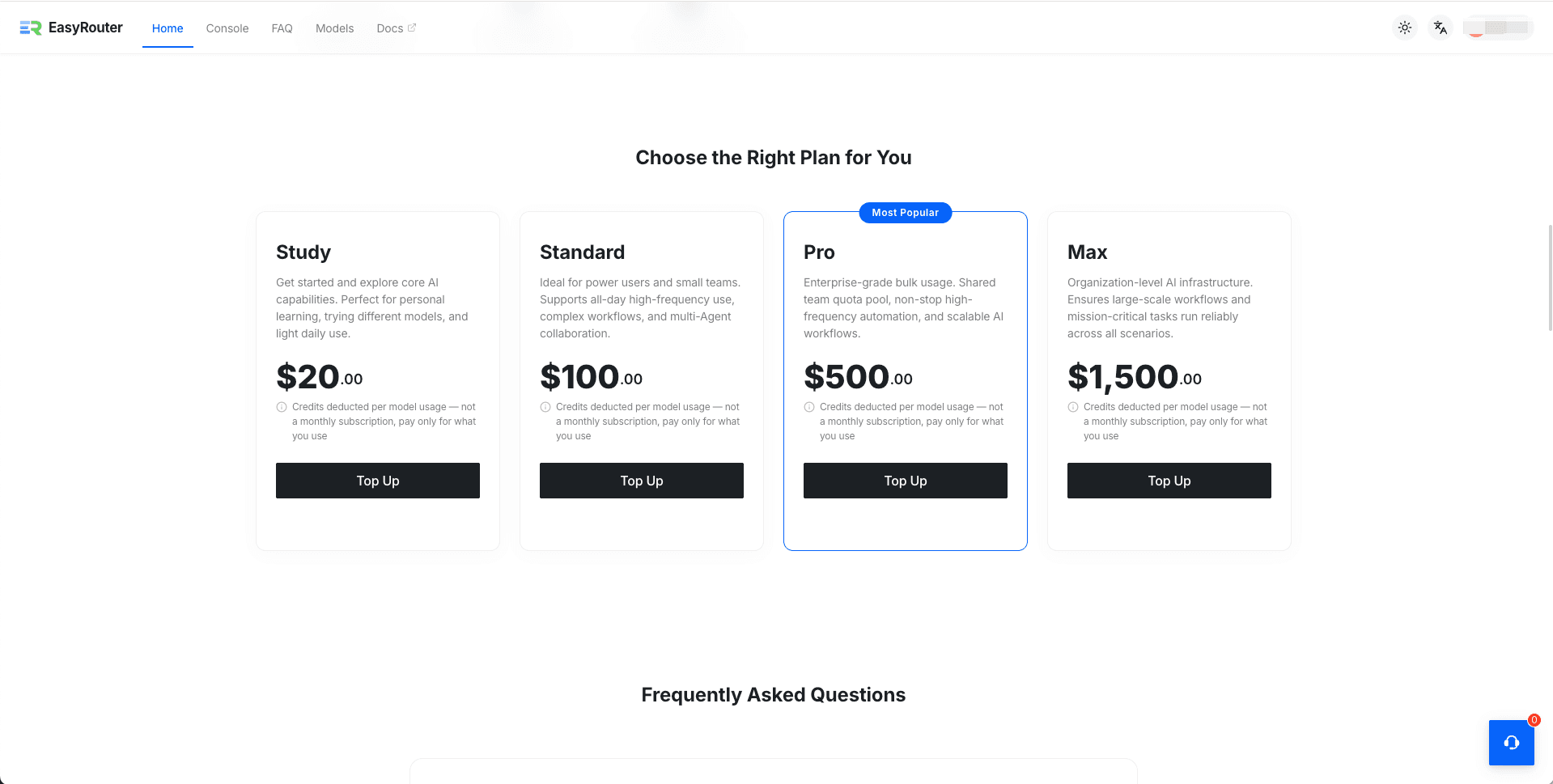
Clicking "Top Up" under any plan on the homepage will automatically redirect you and select that specific top-up amount in the console.
Choose Amount
On the Top Up tab in the console, you can select or customize your amount:
- Quick top-up: Click a preset amount button ($20 / $100 / $500 / $1500), which directly corresponds to the homepage recommended plans.
- Custom amount: Manually enter your desired USD amount in the input field.
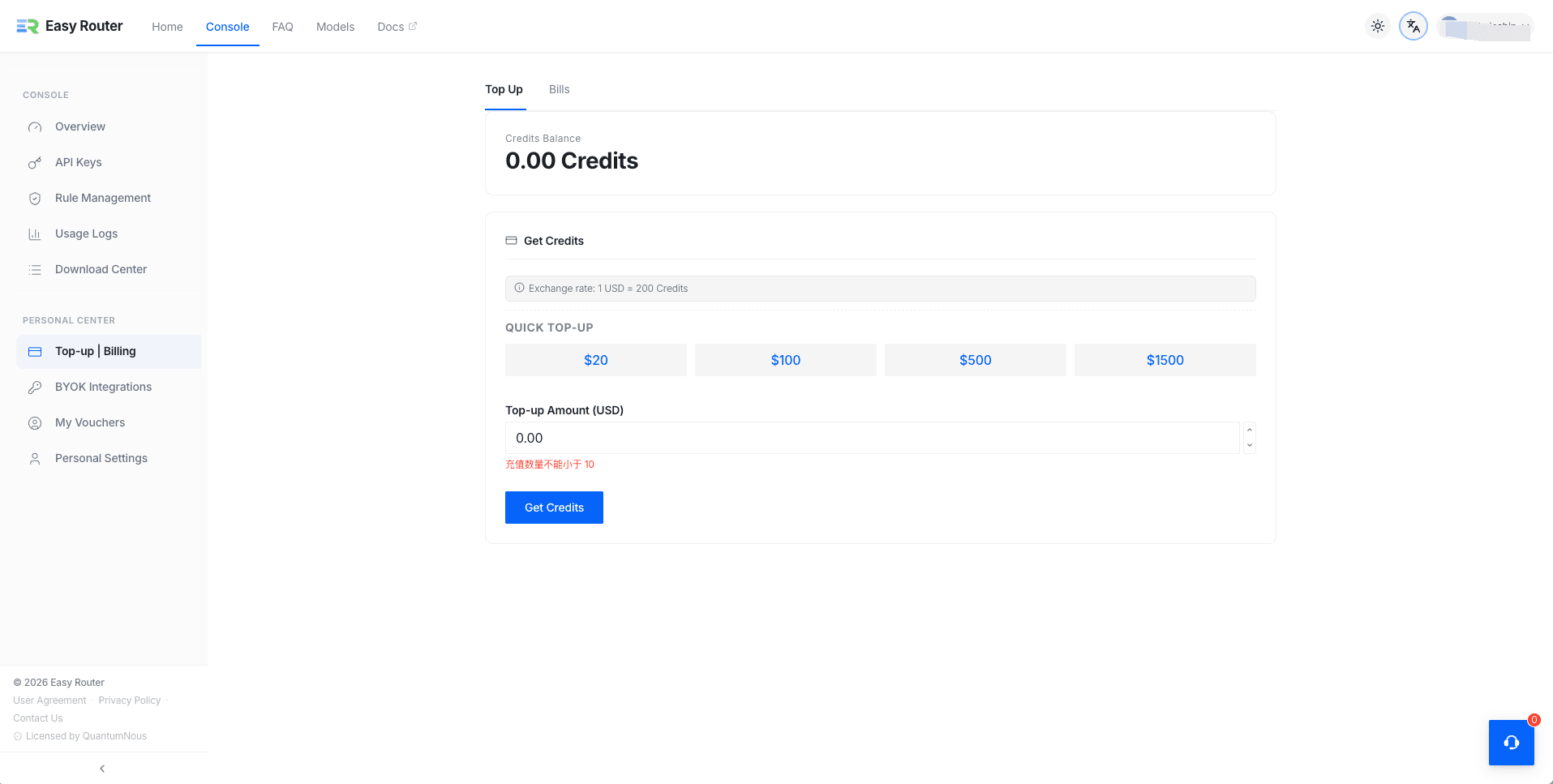
The page calculates the corresponding credits and payment amount in real time.
Complete Payment
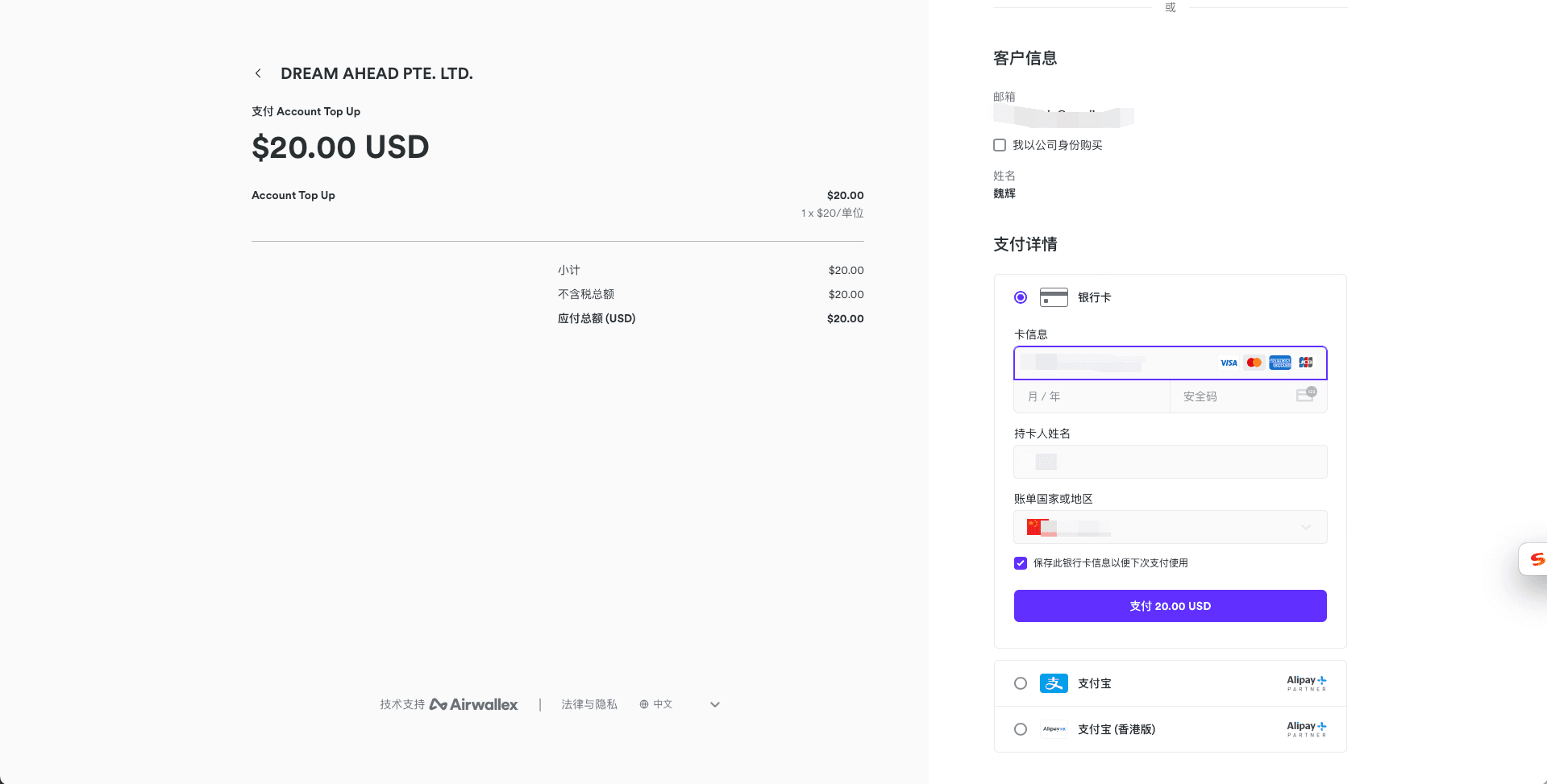
After confirming the details, click Get Credits, choose a payment method, and complete the payment.
Multiple payment methods are supported — Stripe, Airwallex, Alipay, and more. Available options are shown on the page.
After successful payment, you'll return to the console and credits are added instantly.
Billing History & Invoices
EasyRouter provides seamless billing history checks and self-service invoice downloads:
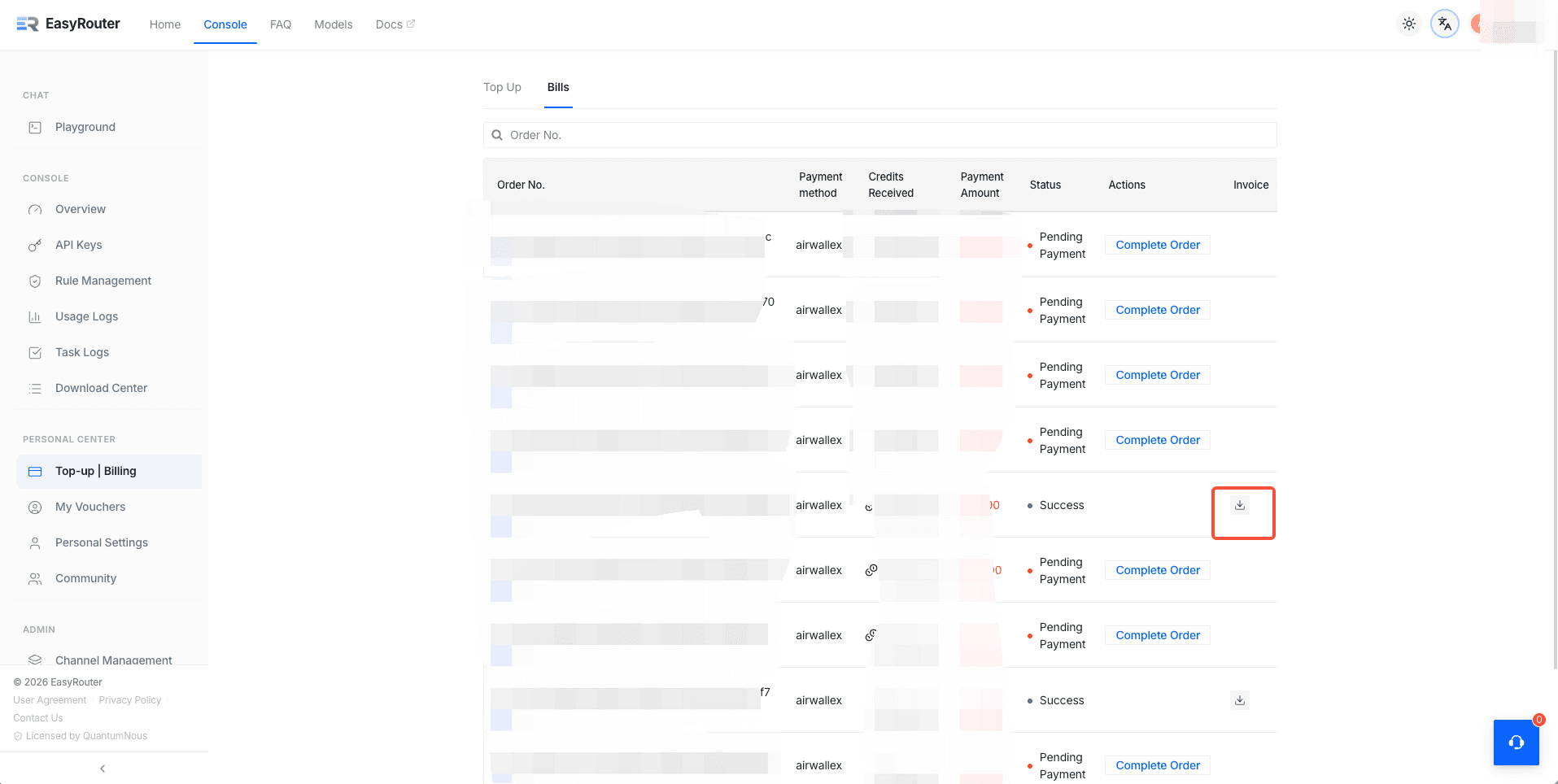
- View Bills: Go to the console's Top-up | Billing → Bills tab to check all historical orders. For any unpaid orders, click "Complete Order" to finish the payment.
- Download Invoices: For successful orders, simply click the download icon under the Invoice column to download your invoice directly.